
Introduction:
The first stage of creating my own smart electronics was getting the communication between the device and my SmartThings hub. I decided to use IFTTT for a number of reasons. IFTTT allows my circuit to control much more than just SmartThings, and it also does not require me to write a smart app. The best way to get a custom device to communicate with SmartThings is by using the maker channel in IFTTT. This allows any device capable of basic HTTP requests to trigger IFTTT events.
For my overall project, I intend to keep the communication device (ESP8266 here) decoupled from the actual system. This is partially so that I don’t have to deal with writing custom code on the ESP, but it is also so that I can swap the radio for another in the future. As a result, I’m using the default AT firmware and a separate MCU (just needs a UART peripheral that can operate at 9600 baud).
IFTTT Setup:
Setting up IFTTT is fairly simple. Just create an account, create a recipe using the Maker channel trigger and the desired action. For testing, this could be an email or IF notification.
Before any commands are sent to the ESP, it is good to know what format we need to use. IFTTT’s maker channel uses simple HTTP requests, and the HTTP GET request is the easiest to use. A minimal GET request is shown below.
GET /internalReference?value1={val1}&value2={val2}&value3={val3} HTTP/1.1
HOST: maker.ifttt.com
If you were to format this as a string, it would be:
“GET /internalReference?value1={val1}&value2={val2}&value3={val3} HTTP/1.1\r\nHOST: maker.ifttt.com\r\n\r\n”
Note: the extra “\r\n” at the end tells the serve that the message is done.
As you can see from the HTTP GET message, we have the ability to send back 3 data values which can be used in the maker channel. If you don’t want to use these values, you can leave them off (everything after and including the ‘?’).
Now that IFTTT is setup and we know our message format, we can begin interacting with the ESP.
Hardware Setup:
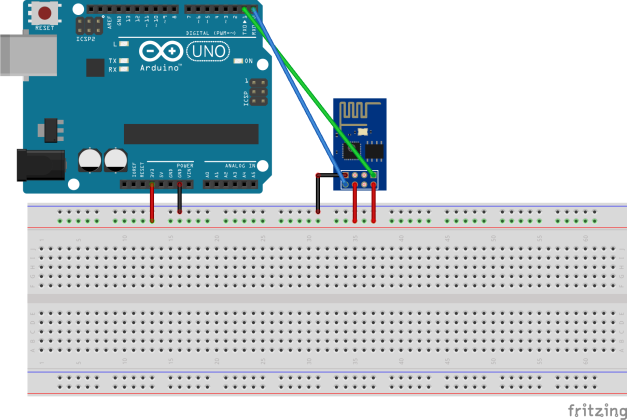
For this part of the project, I’m connecting the ESP8266 to an Arduino as a USB to Serial converter. I hooked up the ESP to the Arduino (with chip removed) as shown in the image below. It is advisable to use an external 3.3V regulator, however, when I used the Arduino, the on-board regulator worked fine for me.
AT commands:
To configure and use the ESP, we need to use the AT commands. All the AT commands can be found here.
The first thing we need to do is configure the ESP:
AT+CWMODE=3 // allows both client and host capabilities
AT+CIPMUX=1 // allows multiple connections
We can list the available APs:
AT+CWLAP
To connect:
AT+CWJAP=”SSID”,”PASSWORD” // no spaces, quotes are required
To disconnect (quit)
AT+CWQAP
Once connected to our AP, we need to make a TCP/IP connection and send our data.
To make a TCP connection (no spaces, quotes required) we send:
AT+CIPSTART=CHANNEL,”TCP/UDP”,”ADDR/IP”,PORT
In our case we send:
AT+CIPSTART=0,”TCP”,”maker.ifttt.com”,80
After this point, you have a connection to maker.ifttt.com. This connection has a timeout, so it is best to have the next command ready.
Now we need to send our HTTP GET message. In general the message is:
AT+CIPSEND=CHANNEL,LENGTH
GET /internalReference?value1={val1}&value2={val2}&value3={val3} HTTP/1.1
HOST: maker.ifttt.com
Here, the string we defined earlier is very useful (that is as long as your serial terminal supports the escape characters \r\n, I use RealTerm). This allows us to send the entire command all at once and can be essentially dropped into a program:
“AT+CIPSEND=0,LENGTH\r\nGET /internalReference?value1={val1}&value2={val2}&value3={val3} HTTP/1.1\r\nHOST: maker.ifttt.com\r\n\r\n”
For example, triggering the “light_on” event through the maker channel:
AT+CIPSEND=0,91\r\nGET /trigger/light_on/with/key/YOUR_KEY_HERE?value1=1 HTTP/1.1\r\nHost: maker.ifttt.com\r\n\r\n
One note on the send message: I’ve found the most annoying part of these commands is calculating their length. The length is everything after the AT+CIPSEND=0,x including the \r\n and you count all characters (\r = 1, \n = 1). The above message should be accurate in its length.
Finally, its good practice to close the connection:
AT+CIPCLOSE=0
All together now:
AT+CWMODE=3
AT+CIPMUX=1
AT+CWJAP=”SSID”,”PASSWORD”
AT+CIPSTART=0,”TCP”,”maker.ifttt.com”,80
AT+CIPSEND=0,91\r\nGET /trigger/light_on/with/key/YOUR_KEY_HERE?value1=1 HTTP/1.1\r\nHost: maker.ifttt.com\r\n\r\n
AT+CIPCLOSE=0
After sending all these commands, you should get a response from the IFTTT server, stating that you successfully triggered the event and you should also have your action triggered.
Stay tuned for the next post about executing all these commands from a MCU connected to the ESP.
 Fully-Loaded Geek
Hello thanks for the tutorial, it’s great but i’m trying make some like this but i have problems in this part:
“AT+CIPSEND=0,116\r\nGET /trigger/arduino-temp/with/key/**** HTTP/1.1\r\nHost: maker.ifttt.com\r\n\r\n”
arduino say me: error
i’m using arduino IDE terminal
can you say me what is wrong please
Thanks!!
The Arduino IDE inserts a “\r\n” after every time you hit send. It also does not recognize what are called escape characters or sequences starting with “\”.
For the Arduino IDE, you would have to hit send every time you want a \r\n inserted. For example, You would type AT+CIPSEND=0,116GET … Where is when you hit the send button (or return on the keyboard).
Also wanted to note: for safety, I wouldn’t show anyone your ifttt key as another person can use it to mess with your triggers and such.
Hope this helps,
Jake
thanks a lot for your tutorial,
I looked since a long time for something like this
now i can go to the next step with my pic16f877a to send at command to my esp8266.
I’ll want to learn how to program directly esp someday,do you have any tutorial for it?
Francis
Glad you enjoyed the tutorial!
I have a tutorial on programming using the NodeMCU (https://fullyloadedgeek.com/2017/01/03/iot-motion-sensor). I have been told the steps are similar for all ESP boards. I thought the micropython image was pretty nice; didn’t have to worry about compiling for the ESP.